How to set a per-app spending limit
Last updated: August 25, 2026
Set a spending limit for an individual Alchemy app to help control costs. You can set the limit in Compute Units (CUs) or dollars.
Before you begin
You must be a billing admin for your account to set a per-app spending limit. If you do not have billing-admin access, ask a billing admin to configure the limit or make you an admin.
Set a per-app spending limit
In the Alchemy Dashboard sidebar, go to Settings and select Usage.
In the Usage Breakdown section, select Set Limit.
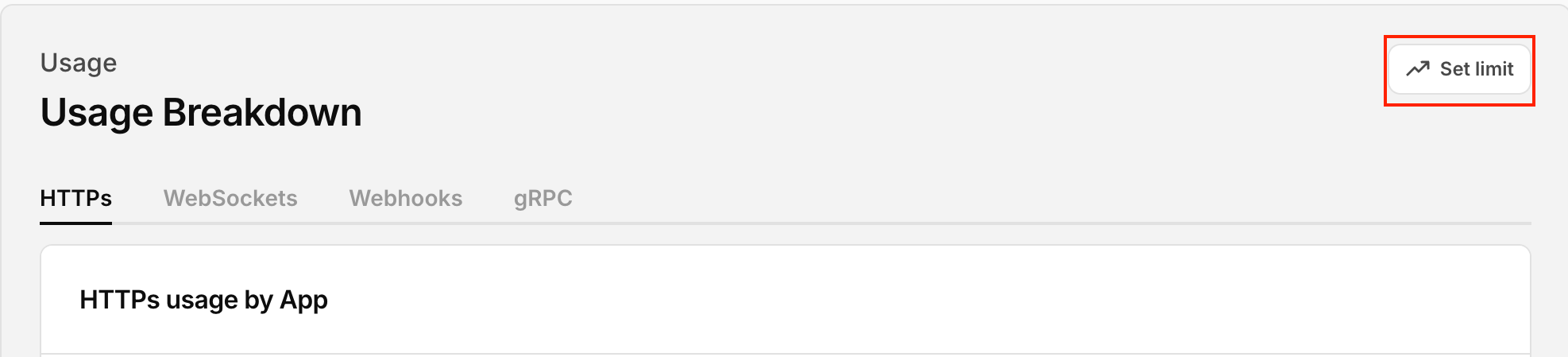
Select Set Limit in Usage Breakdown.
In the CU spending limits dialog, select the Per app tab.
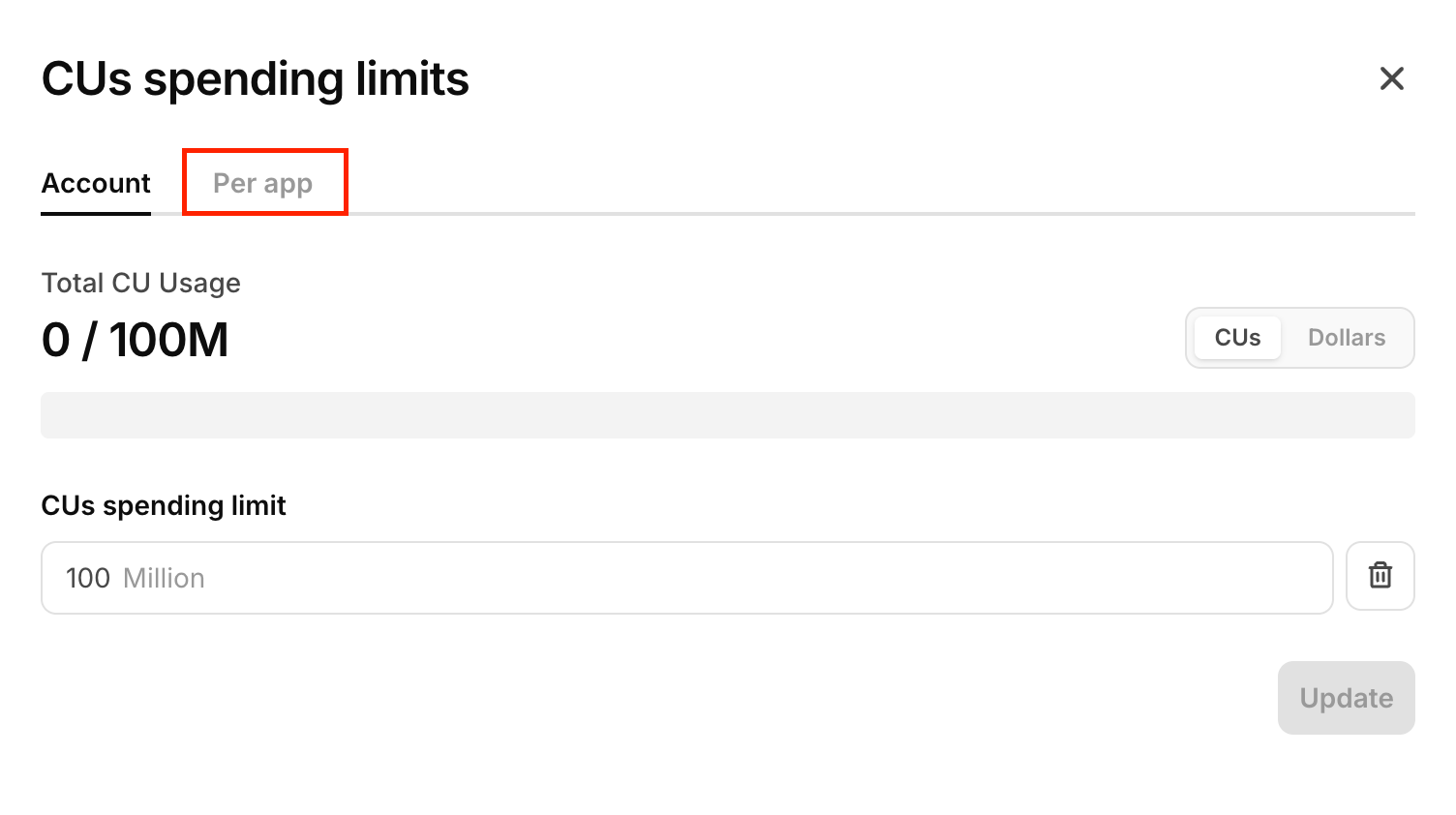
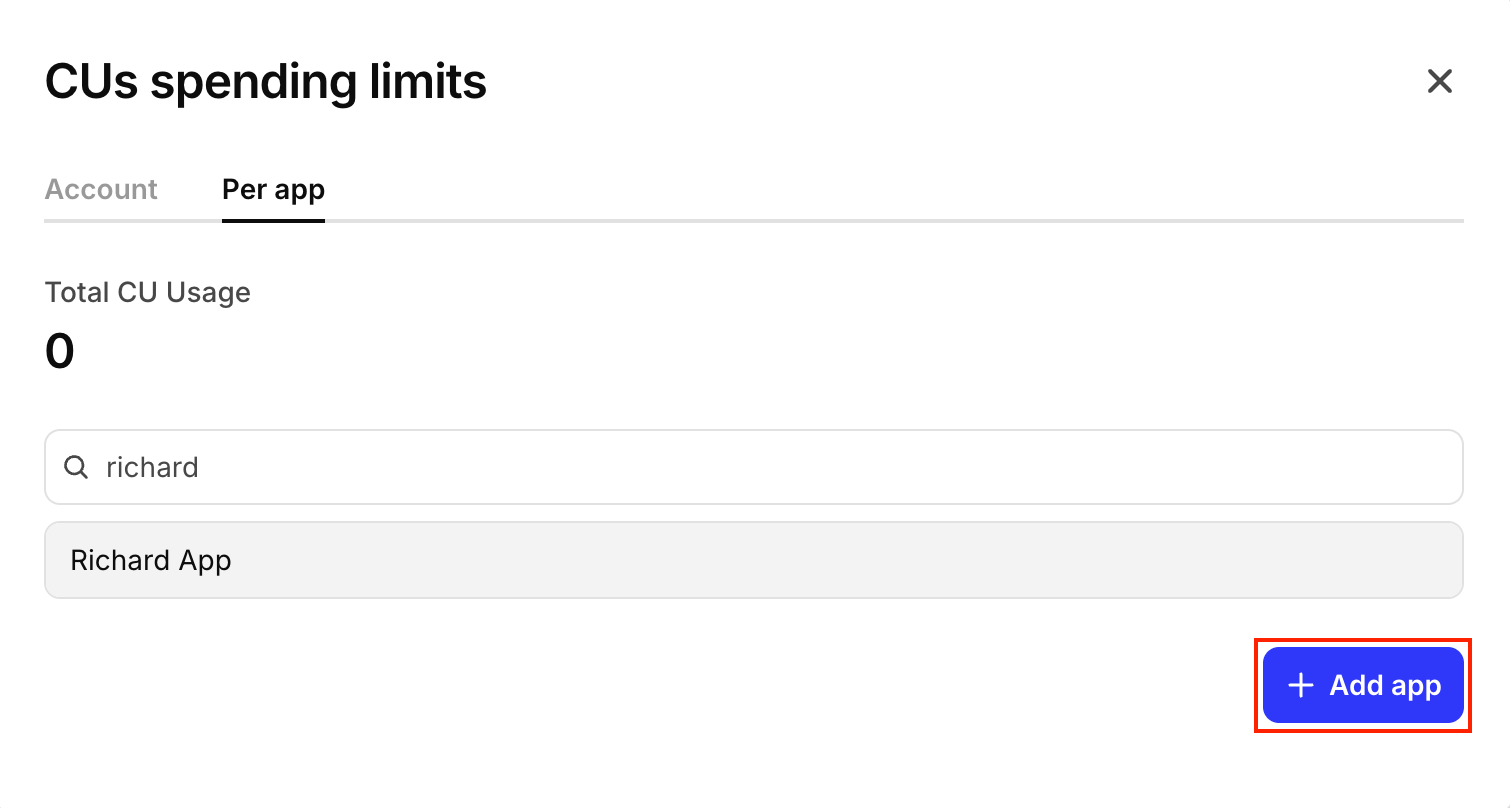
Select Add app, then search for and select the app you want to limit.
Enter the limit in CUs or dollars, then select Set limit to save it.
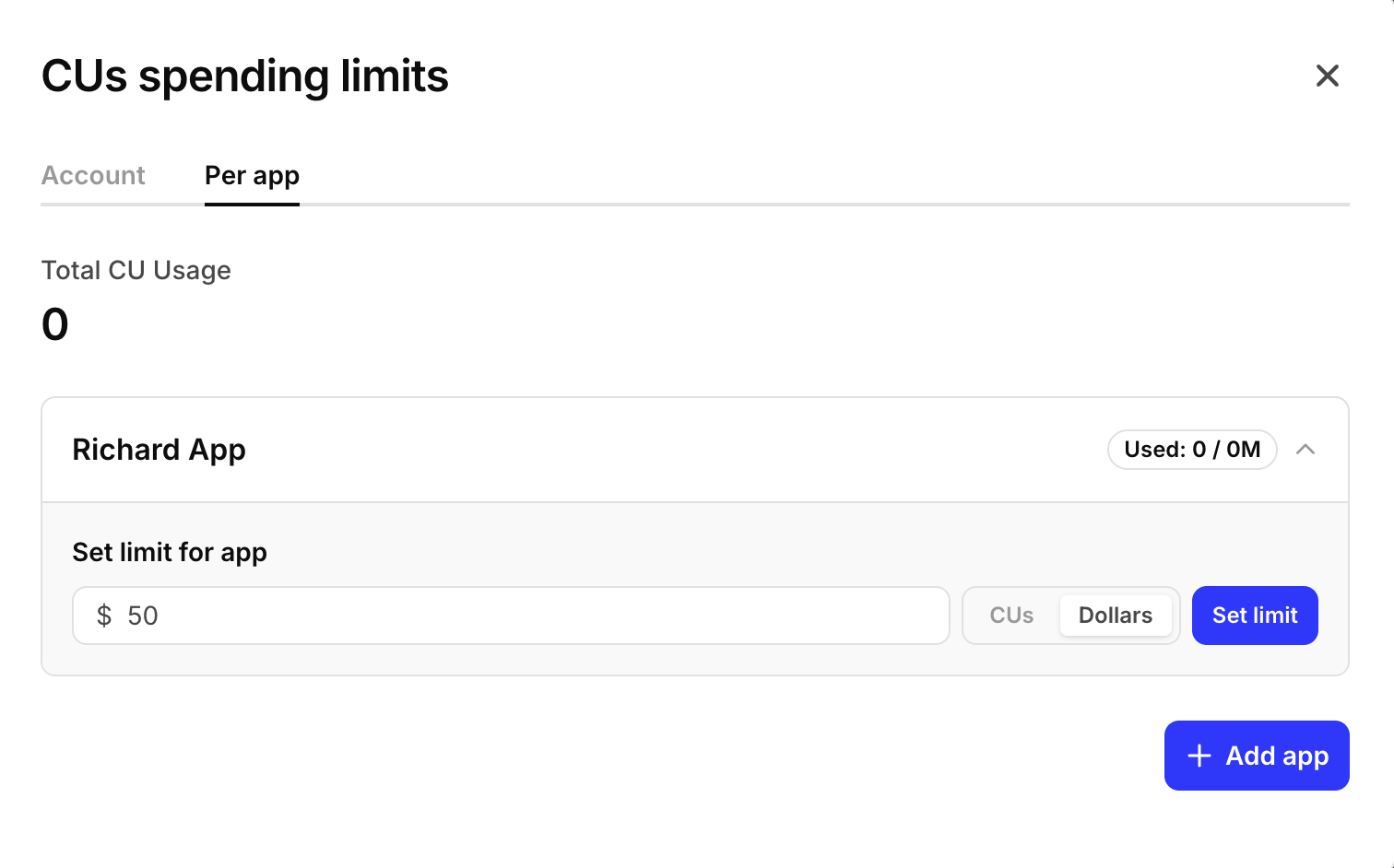
Set the limit in CUs or dollars, then confirm.
Verify the limit
Return to the Per app tab and confirm that the app and its configured limit are listed.
How the limit applies each billing period
A per-app spending limit applies to usage within your current billing period only. It resets automatically at the start of each subsequent billing period, so you do not need to reconfigure it each month.