How to invite a teammate to join your Alchemy team
Last updated: August 25, 2026
Follow these steps to add a new member to your team:
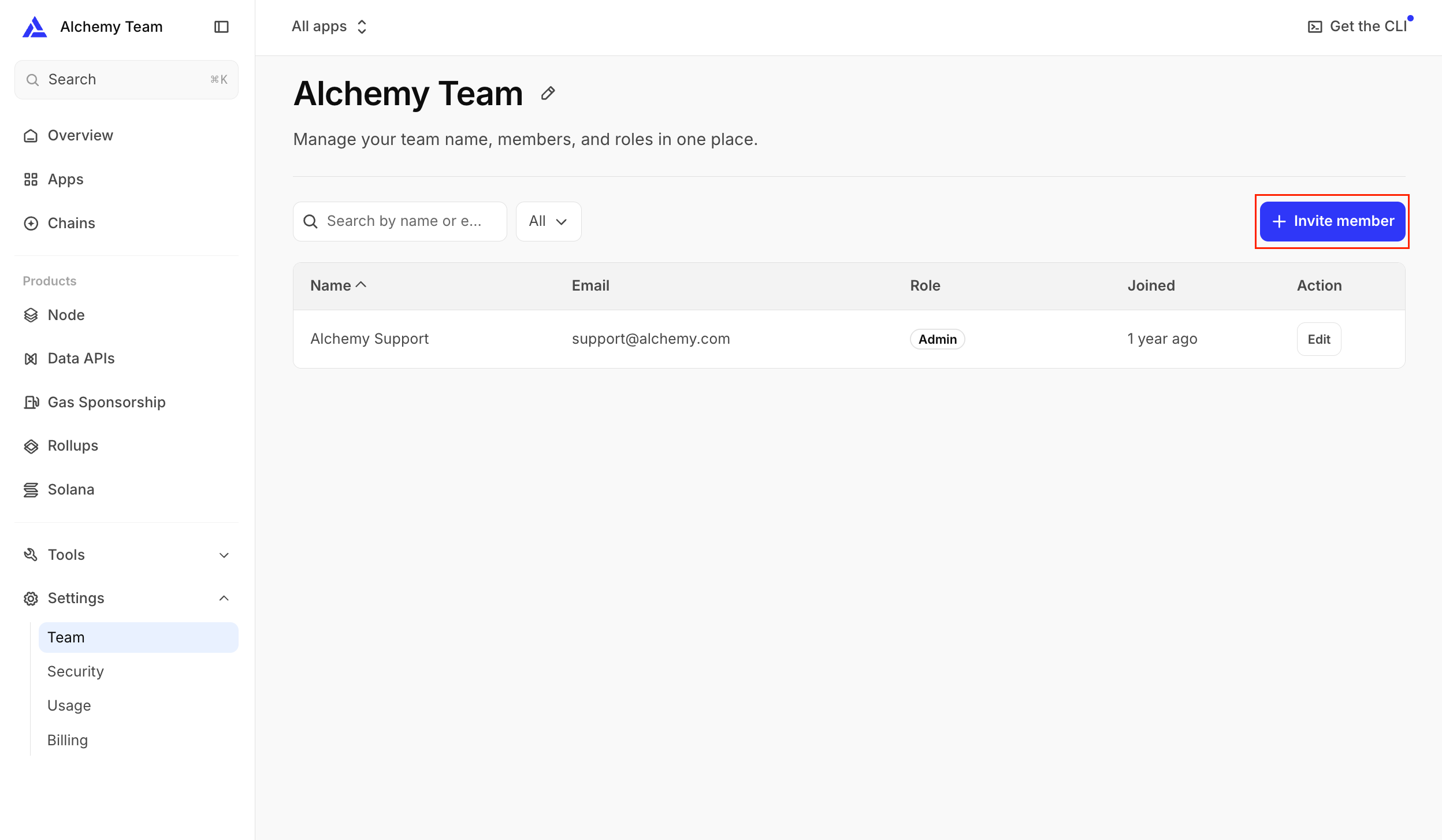
Navigate to Team Settings: Log in to your Alchemy Dashboard. Click the Settings gear icon in the bottom-left corner of the sidebar, then select the Team tab at the top.
Direct Link: dashboard.alchemy.com/settings/team
Open the Invite Menu: Click the blue + Invite Teammate button located in the top-right corner of the page.
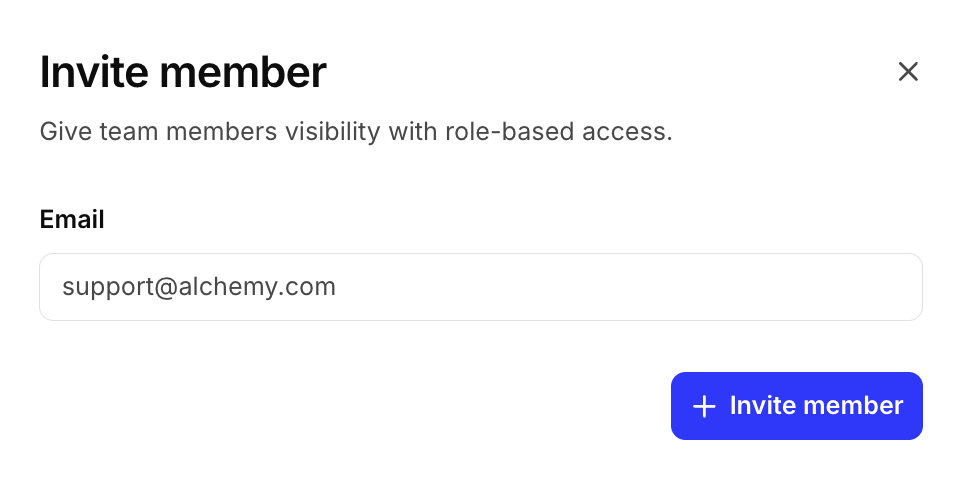
Enter Teammate Details: Email: Type the email address of the person you want to invite. If they already have their own Alchemy account, use the email address tied to that existing account — inviting them adds their account to your team, it doesn't create a new one or merge separate accounts together.
Choose a role: Pick Admin or Member for the new teammate.
Click Invite member.
Choosing a role
Admin can manage billing, access keys, plan changes, gas policy limits, and other team members. Member can build apps and configure policies, without administrative or billing access. See Dashboard Roles for the full breakdown of what each role can do.
Who can send invitations?
Any existing member of your team can invite a new teammate — this isn't limited to team admins. If you're not sure who's already on your team, check the Team Settings page for the current member list.
What happens to the invited account
Inviting a teammate doesn't merge accounts. If the person you invite already has their own Alchemy account, accepting the invite switches that account into your team's environment rather than combining the two accounts. See Can I use one Alchemy account for multiple teams? for what happens to their existing apps and how to move back.